Self-hosted Gitea on a VPS: Docker install, HTTPS and backups
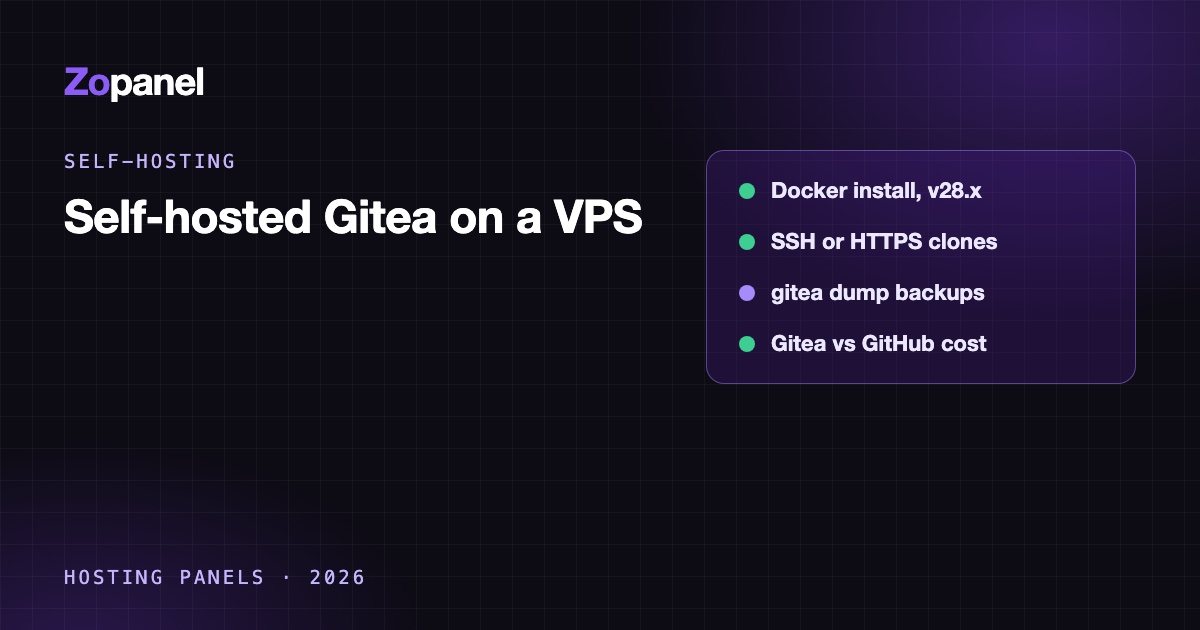
Run a self-hosted Gitea on a VPS with Docker, nginx and HTTPS, SSH or HTTPS clones, gitea dump backups and updates, or install it in one click with ZoPanel.
Key takeaways
- Gitea is an MIT-licensed Git service with repositories, issues, pull requests, packages and Actions, light enough for a small VPS.
- Its version numbers jumped from 1.27 to 28.0 in September 2026, so the current line is 28.x.
- Set ROOT_URL to your HTTPS address and raise nginx's client_max_body_size, or clone links and big pushes break.
- Back up with gitea dump or the whole /data volume; every clone has the code, but not issues or pull requests.
A self-hosted Gitea runs well from the official Docker image with one /data volume, the web port published on 127.0.0.1 only behind nginx with HTTPS, and ROOT_URL set to your public address, for example https://git.example.com/. SQLite is enough for a solo developer or a small team, and a 1 to 2 GB VPS is a comfortable start. If the server runs ZoPanel, Gitea installs in one click from the App Store, with SSL, a 512 MB memory limit and a setup lock, and clones over HTTPS.
This guide covers what Gitea is, when it makes sense over GitHub, the manual Docker install, the ZoPanel route, backups and updates.
What is Gitea?
Gitea is a lightweight, self-hosted Git service with a web interface: private and public repositories, issues, pull requests with code review, wikis, releases, a package registry and Gitea Actions for CI/CD. It is a single Go binary and is released under the MIT licence, with unlimited users and repositories in the free edition. Gitea Ltd also sells Gitea Cloud (a managed instance) and Gitea Enterprise.
At the time of writing (October 2026) the latest release is v28.2.0 from 18 October 2026. Note the numbering: after v1.27.3 (August 2026), the project released v28.0.0 on 29 September 2026. Older tutorials that pin gitea/gitea:1.2x are out of date.
Gitea vs GitHub: is it worth self-hosting?
Be honest about the money first. GitHub's Free plan already includes unlimited private repositories and collaborators, 2,000 Actions minutes a month and 500 MB of package storage. GitHub Team is listed at $4 per user per month (marked as the price for the first 12 months) at the time of writing (October 2026). For many small teams that is cheaper than the time spent running a server.
Self-hosting Gitea makes sense when:
- Code must stay on your own infrastructure, for a client contract, a regulator or simply company policy.
- You want no per-seat pricing as the team grows.
- You run your own CI runners and deploy targets on the same network anyway.
- You mirror GitHub or GitLab repositories as a backup you control.
| Self-hosted Gitea | GitHub Free | GitHub Team | |
|---|---|---|---|
| Licence cost | $0 (MIT) | $0 | $4/user/month (first 12 months) |
| Private repositories | Unlimited | Unlimited | Unlimited |
| CI/CD | Gitea Actions with your own runner | 2,000 Actions minutes/month | More minutes (see GitHub's plan page) |
| Where code lives | Your server | GitHub | GitHub |
| Who maintains it | You | GitHub | GitHub |
GitHub has the larger ecosystem, hosted runners and no maintenance. Gitea gives you control and a smaller footprint. If you need commercial support, Gitea Enterprise and Gitea Cloud are priced per user on Gitea's pricing page, with a 30-day trial.
What size of VPS do you need?
Gitea does not publish a RAM minimum; its comparison page lists "low RAM/CPU usage" as a feature against GitLab and others. As a reference, ZoPanel runs it with a 512 MB memory limit and 1 CPU. A 1 GB VPS is enough for a small team on SQLite; give it 2 GB if you add PostgreSQL or a CI runner on the same machine. Disk is usually the real limit: repositories, LFS files and packages all grow.
Option 1: Self-hosted Gitea with ZoPanel (one click)
On a ZoPanel server, Gitea is in the App Store (full guide):
- Open App Store. If you see Docker is required, click Install Docker first.
- On the Gitea card, click Install.
- Enter the Domain (for example
git.example.com). Administrators also choose the Owner account. Leave Free SSL (Let's Encrypt) on. - Click Install and follow the task log until
Gitea is available at http://<domain>.
ZoPanel sets GITEA__server__ROOT_URL=https://<domain>/, the server domain, DISABLE_SSH=true and DB_TYPE=sqlite3, and re-applies them at every start.
The setup lock. Until Gitea is configured, the first visitor could create its administrator, so visitors see "This app is being set up" while you finish:
- On the website's Docker tab, wait for
running, then click Open the app (only for me) in the Setup lock is on card. The Initial Configuration page opens. - Leave Database Settings on SQLite3. Set a Site Title and check that Gitea Website URL is
https://<domain>/. - Optional: under Email Settings, enter a mailbox from the panel (port 587 or 465) for notifications and password resets.
- Under Server and Third-Party Service Settings, tick Only administrators can create user accounts unless you want public sign-up, and Require sign-in to view pages for a private instance.
- Fill in Administrator Account Settings and click Install Gitea.
- Back on the Docker tab, click Setup finished — open to everyone.
Limits to know, from the docs:
- No SSH clones. Port 22 belongs to the server's own SSH, so Gitea's SSH server is off and clone URLs use HTTPS. With two-factor authentication on, use an access token as the Git password.
- Push size. Each push is limited by the website's upload size, 256 MB by default. Raise Maximum upload (MB) on the website's Tools tab (up to 10 GB) for large histories.
- Actions needs your own runner (
act_runner) on another machine, connected over HTTPS. - Migrations and mirrors from GitHub or GitLab work, and so do webhooks to public URLs. Webhooks to private addresses do not.
For deploying websites from Gitea into ZoPanel sites, see Git auto-deploy.
Option 2: Self-hosted Gitea by hand with Docker Compose
For a VPS without a panel. Install Docker Engine from Docker's repository (commands in our n8n guide).
Step 1: Compose file
Based on Gitea's Docker documentation:
sudo mkdir -p /opt/gitea && cd /opt/gitea
sudo nano compose.yaml
services:
  server:
    image: docker.gitea.com/gitea:28.2.0
    restart: always
    environment:
      - USER_UID=1000
      - USER_GID=1000
      - GITEA__server__ROOT_URL=https://git.example.com/
      - GITEA__server__DOMAIN=git.example.com
      - GITEA__server__SSH_DOMAIN=git.example.com
      - GITEA__server__SSH_PORT=222
    volumes:
      - ./gitea:/data
      - /etc/timezone:/etc/timezone:ro
      - /etc/localtime:/etc/localtime:ro
    ports:
      - "127.0.0.1:3000:3000"
      - "222:22"
Notes:
- The web port is on
127.0.0.1only; nginx serves it with HTTPS. - Gitea's docs map container SSH to host port 222, leaving port 22 for the server itself. Open it in the firewall (
sudo ufw allow 222/tcp) if you want SSH clones; otherwise drop that line and use HTTPS. - The
./giteafolder must be owned by the UID and GID you set, or the container may not start. - For a bigger team, the same page shows a PostgreSQL variant (
GITEA__database__DB_TYPE=postgreswith apostgres:18service). Pin the PostgreSQL major version, because PostgreSQL does not upgrade its data directory by itself.
sudo docker compose up -d
Step 2: nginx and HTTPS
server {
    listen 80;
    server_name git.example.com;
    client_max_body_size 512m;

    location / {
        proxy_pass http://127.0.0.1:3000;
        proxy_set_header Host $host;
        proxy_set_header X-Real-IP $remote_addr;
        proxy_set_header X-Forwarded-For $proxy_add_x_forwarded_for;
        proxy_set_header X-Forwarded-Proto $scheme;
    }
}
client_max_body_size matters: nginx's default of 1 MB makes larger pushes fail with HTTP 413. Enable the site, then run sudo certbot --nginx -d git.example.com, and open the domain to finish the Initial Configuration page straight away.
Step 3: Lock it down
- Turn off self-registration unless you want it, and require sign-in for a private instance.
- Turn on two-factor authentication for every admin (Settings → Security).
- Use access tokens with limited scopes for CI and scripts.
Backing up Gitea
Every clone holds a repository's full history, but not issues, pull requests, wiki metadata, users or settings. Those live in the database.
Option A, gitea dump. Gitea's own backup command writes a zip with the database as SQL, repositories, data and configuration:
sudo docker compose exec -u git server gitea dump -c /data/gitea/conf/app.ini --file /tmp/gitea-dump.zip
sudo docker compose cp server:/tmp/gitea-dump.zip /root/gitea-dump-$(date +%F).zip
Gitea's docs recommend stopping activity during a dump for a fully consistent result, so run it at a quiet time.
Option B, the volume. Stop the container, archive /opt/gitea/gitea, start it again. Simple and complete.
On ZoPanel, app data is not part of account backups. Use the Backups card on the Docker tab (Back up now, plus a daily or weekly Schedule for administrators); the container is paused a few seconds so SQLite and repositories are consistent. Copy archives off the server, as in any backup strategy.
Updating Gitea
- Back up. Gitea migrates its database on start, and going back to an older version is not supported.
- Read the release notes, especially across major versions.
- Change the tag and run
sudo docker compose pull && sudo docker compose up -d.
On ZoPanel, Update to latest stays within the 28.x line; later major versions arrive with ZoPanel updates.
Conclusion
A self-hosted Gitea is one of the easiest apps to run: one container, one volume, a correct ROOT_URL and an nginx limit large enough for your pushes. Decide early between SSH on a separate port and HTTPS with tokens, and back up the database, not just the code. If you want Gitea next to your websites on one server with SSL, isolation and scheduled app backups handled, try ZoPanel's Free plan (3 hosting accounts, 10 websites, no time limit) and see the App Store features:
curl -fsSL https://get.zopanel.net | sudo bash
Frequently asked questions
Is Gitea free for commercial use?
Yes. Gitea is MIT-licensed, so companies can run it internally or for clients without a licence fee. Gitea Enterprise and Gitea Cloud are optional paid products with support and extra features such as SAML SSO and audit logs.
How much RAM does Gitea need?
Gitea does not publish a minimum and is known for a small footprint. ZoPanel runs it with a 512 MB limit; a 1 GB VPS works for a small team on SQLite, and 2 GB leaves room for PostgreSQL.
Should I use Gitea or GitLab?
GitLab includes more built in, such as a complete CI system and broad project management, but its requirements page gives 16 GB of RAM and 8 vCPU as the single-node baseline (at least 8 GB in memory-constrained setups). Gitea is lighter and simpler to maintain. For a small team that mainly needs repositories, reviews and basic CI, Gitea is usually enough.
Does Gitea have CI/CD?
Yes, Gitea Actions uses workflow files similar to GitHub Actions. You need to register at least one runner (act_runner), usually running jobs in Docker on a machine you choose.
Can I mirror my GitHub repositories to Gitea?
Yes. New Migration imports a repository from GitHub, GitLab and other hosts, and can keep it as a pull mirror that syncs on a schedule. It is a cheap way to keep a copy of important code you control.
Install ZoPanel free
One command on a fresh Ubuntu or Debian server. Up and running in minutes.
Install in 5 minutesKeep reading
How to self-host Metabase on a VPS: Docker, PostgreSQL and a read-only user
Self-host Metabase on a VPS with Docker, a PostgreSQL app database, HTTPS, a read-only database user, memory settings and backups, or use ZoPanel.
How to self-host Uptime Kuma on a VPS with Docker and HTTPS
Self-host Uptime Kuma on a VPS with Docker, nginx and HTTPS, alerts, status pages and backups, or install it in one click from the ZoPanel App Store.
How to run Docker apps securely on a VPS: 9 things to get right
Run Docker apps securely on a VPS - localhost-only ports, user namespaces, memory limits, network isolation and SSL - with sample configs and the ZoPanel way.