How to migrate from cPanel to a VPS without losing data
A step-by-step guide to migrate cPanel hosting to a VPS: full cpmove backup, sites, databases and email, testing before the DNS switch, and avoiding downtime.
Key takeaways
- Inventory, lower the TTL, take a full cPanel backup, restore on the VPS, test through your hosts file, and only then switch DNS.
- Lowering TTL to about 300 seconds a day ahead makes the DNS switch take minutes.
- Email is where data most often goes missing; keep the old hosting running for a few days after changing MX.
- A panel that imports cPanel backups directly keeps passwords, databases, mailboxes and DNS zones intact.
To migrate from cPanel to a VPS without losing data, work in this order: take an inventory of what is running, lower your DNS TTL, create a full backup in cPanel (a cpmove-USER.tar.gz file), restore sites, databases and email on the VPS, test through your hosts file while DNS still points to the old host, and only then switch DNS. Done in that order, visitors barely notice the move.
This guide walks through those six steps with two ways to restore: importing the cPanel backup directly with a control panel, or rebuilding each piece by hand. It ends with the mistakes we see most often, especially around email, which is where many people discover problems only after cancelling the old plan.
When should you move from cPanel hosting to a VPS?
The usual reasons:
- Sites are slow or hitting shared hosting limits (CPU, memory, process counts).
- You run several sites, and their hosting plans together cost about as much as a VPS.
- You need things shared hosting will not allow: Node.js, Python, Docker, Redis, frequent cron jobs.
- You are an agency or hosting provider and want control over license costs.
The trade-off: on a VPS you are responsible for updates, security and backups. A good control panel carries much of that load, but not all of it.
Step 1: inventory what runs in cPanel
Before touching anything, write down:
| Item | Where to find it in cPanel | Why it matters |
|---|---|---|
| Main, addon, subdomains and aliases | Domains | Each needs a site and a certificate on the VPS |
| Databases and users | MySQL Databases | Names may change with the new username |
| Mailboxes, forwarders, autoresponders | Email Accounts, Forwarders | The part people forget |
| PHP version | MultiPHP Manager | Old sites may break on a newer PHP |
| Cron jobs | Cron Jobs | Background tasks such as mailers and syncs |
| Who hosts DNS | Zone Editor, and nameservers at the registrar | Decides where you change records |
.htaccess rules |
File Manager | Nginx does not read .htaccess |
The most important question here: where do the domain's nameservers point? If they point to the old host's nameservers, cancelling the hosting also cancels your DNS. Move DNS somewhere you control (your registrar, Cloudflare, or a DNS server on the VPS) as part of the plan.
Step 2: lower the TTL a day ahead
The TTL decides how long resolvers remember the old DNS answer. With a TTL of 14,400 seconds (4 hours), some visitors will keep reaching the old server for hours after you change the IP.
About 24 hours before the move, set the TTL of your A, AAAA and MX records to 300 seconds. When you change the IP, most visitors switch within minutes. Raise the TTL again once everything is stable.
Step 3: create a full cPanel backup
Three ways, depending on your access:
- Account owner without WHM: go to cPanel → Backup → Download a Full Account Backup, save it to your home directory, wait for the completion email, then download the
cpmove-USER.tar.gzfile (or similarly named archive). - With WHM: use the Backup Wizard or the Transfer Tool.
- With root SSH: run the
pkgacctscript described in cPanel's own documentation:
/usr/local/cpanel/scripts/pkgacct USERNAME /home/backup
The archive holds the home directory (sites and Maildir email), dumps of the MySQL databases and the account configuration. One caveat from cPanel's docs: an account's two-factor authentication settings are not included, so plan to set up 2FA again on the new server.
Check disk space: the VPS needs room for the archive and its unpacked contents. Allow at least twice the archive size.
Step 4: restore on the VPS
Option A: import the cPanel backup with a control panel
The lowest-risk route is a panel that reads cpmove files directly. With ZoPanel, after installing it on a fresh VPS:
- Open Migrate in in the admin menu.
- Upload a backup (up to 50 GB) or Download from a URL if you have placed the file temporarily at a public address.
- Review the analysis: the sites, databases, mailboxes, forwarders and cron jobs it found. Resolve before importing lists conflicts such as a username that already exists; you can change the username, choose a package, and see which database and mailbox passwords are kept.
- Click Start import and follow the task log.
What comes across from a cPanel backup:
| Item | Notes |
|---|---|
| Account and panel password | The old password keeps working for the panel and SFTP when its hash format can be checked |
| Sites (main, addon, subdomains, aliases) and files | Links pointing outside the account are not copied |
| PHP version | Read from the ea-php/alt-php setting; old 5.x versions map to the closest installed one |
| MySQL/MariaDB databases and users | Passwords kept when the hash is portable; otherwise a new one is written into the app's config file |
| Mailboxes, messages, quotas, forwarders, autoresponders | Maildir messages are imported; mdbox mailboxes are not |
| Cron jobs | Up to 100 |
| DNS zones, FTP accounts | Need the DNS server and FTP server components |
| SSL certificates | Installed as custom certificates |
PostgreSQL databases are not imported automatically, and anything not carried over is listed in the log with the reason. If you run a whole cPanel server, Migrate in → Move a whole server connects to the old server over SSH, creates each backup there with pkgacct and moves the accounts one after another. Details are in Migrating to ZoPanel.
Option B: move each piece by hand
If you built the VPS yourself (see how to install WordPress on a VPS), move each part:
Files. Unpack the backup on the VPS, or pull straight from the old host if you have SSH there:
rsync -avz -e ssh user@old-host:public_html/ /var/www/example.com/
sudo chown -R www-data:www-data /var/www/example.com
Databases. Create the database and user on the VPS, then import the .sql file from the backup or from phpMyAdmin:
sudo mariadb example_db < example_db.sql
Then update the connection details in wp-config.php, .env or your app's config file to match the new database name, user and password.
.htaccess. If the VPS runs Nginx, translate the rewrites, access rules and redirects from .htaccess into Nginx configuration. This is the most common cause of 404 errors after a move.
Email. Recreate each mailbox on the VPS, then copy the messages over IMAP with a tool such as imapsync (you need the passwords on both sides). If you would rather not run a mail server, this is a good moment to move email to a dedicated mail provider.
Cron and SSL. Recreate cron jobs from your step 1 list. Let's Encrypt certificates can only be issued once DNS points to the VPS (step 6), unless you use DNS validation.
Step 5: test before you switch DNS
This is the step people skip. You can view the site on the VPS while everyone else still reaches the old host by editing your own hosts file:
- Linux and macOS:
/etc/hosts - Windows:
C:\Windows\System32\drivers\etc\hosts(open Notepad as Administrator)
Add one line with the VPS's IP:
203.0.113.10 example.com www.example.com
Then check:
- The home page, a few inner pages, a page with a form, the login page.
- Sign in to wp-admin, upload an image, save a draft.
- The site's error log on the VPS.
- If there is no certificate yet, the browser warns about HTTPS; that is expected at this stage.
When you are done, remove that line, or you will keep seeing the VPS even if public DNS is wrong.
Step 6: switch DNS and handle email
- Freeze content: ask editors or customers to pause posting and ordering during the move; for a store, sync the database one last time just before switching.
- Change the A and AAAA records for the domain and
wwwto the VPS's IP. If the VPS receives mail, change MX too and update SPF. - Issue SSL: ZoPanel issues certificates automatically as each domain starts to resolve to the server; on a self-built stack, run
certbotnow. - Keep the old hosting for 7 to 14 days. While DNS propagates, some mail still lands in the old mailboxes. Sync email once more after a few days so nothing is lost.
If you host mail on the VPS, check that your provider allows outbound port 25, set reverse DNS (PTR) for the IP, and configure SPF, DKIM and DMARC. Without them, mail tends to land in spam. See the email docs.
Common mistakes when you migrate cPanel to a VPS
- Cancelling the old hosting too soon, before checking email and DNS. Leave at least a week.
- Forgetting the nameservers: DNS lived at the old host and disappears with the plan.
- Switching DNS with a high TTL, splitting visitors between two servers for hours.
- PHP version mismatch: the old site ran PHP 7.4 and the VPS defaults to 8.3. Match first, upgrade later.
- Lost orders during the move: no final database sync before the DNS switch.
- No backups on the VPS: on shared hosting the provider handled backups; on a VPS that is your job from day one.
Conclusion
Moving from cPanel hosting to a VPS is a one-off job worth doing carefully: inventory, lower the TTL, back up, restore, test through your hosts file, then switch DNS and keep the old plan a little longer. If you want to import cPanel backups directly with passwords, databases, mailboxes and DNS zones intact, try ZoPanel on a fresh VPS: the Free plan covers 10 websites for a trial migration, and pricing shows when Pro makes sense. If you are replacing the panel for a whole hosting company, read choosing a cPanel alternative.
Frequently asked questions
Will there be downtime when I migrate from cPanel to a VPS?
Usually not, if you restore and test the site on the VPS first, lower the TTL to about 300 seconds a day ahead, and only then switch DNS. For sites with constant orders or comments, sync the database one last time right before switching.
Can I create a cPanel backup without WHM access?
Yes. As the account owner, use cPanel → Backup → Download a Full Account Backup to create an archive with your files, databases and email. You do not need root or WHM.
Will I lose email when I change hosting?
Not if you recreate the mailboxes, copy the old messages, change MX, then keep the old hosting for a few days and sync again. Lost mail usually comes from cancelling the old host right after changing MX.
What VPS size do I need to replace cPanel shared hosting?
For a handful of small WordPress sites, 2 GB of RAM is a sensible start; add more if you also run a mail server. Size the disk from your backup archive, with room for backups on the VPS.
Do passwords stay the same after the move?
With a manual move you usually reset mailbox and database passwords. When you import a cPanel backup with ZoPanel, panel, mailbox and database passwords are kept when the hash format is compatible, and the log lists any exceptions.
Install ZoPanel free
One command on a fresh Ubuntu or Debian server. Up and running in minutes.
Install in 5 minutesKeep reading
How to install WordPress on a VPS: manual LEMP and control panel
Install WordPress on a VPS running Ubuntu 24.04 or Debian 12, by hand with Nginx, PHP, MariaDB and Let's Encrypt or with a control panel, then secure it.
How to secure an Ubuntu VPS: 10 steps for the first hour
Secure an Ubuntu VPS (24.04) step by step: SSH keys, no password logins, UFW, Fail2ban, automatic updates and backups, with exact commands and traps to avoid.
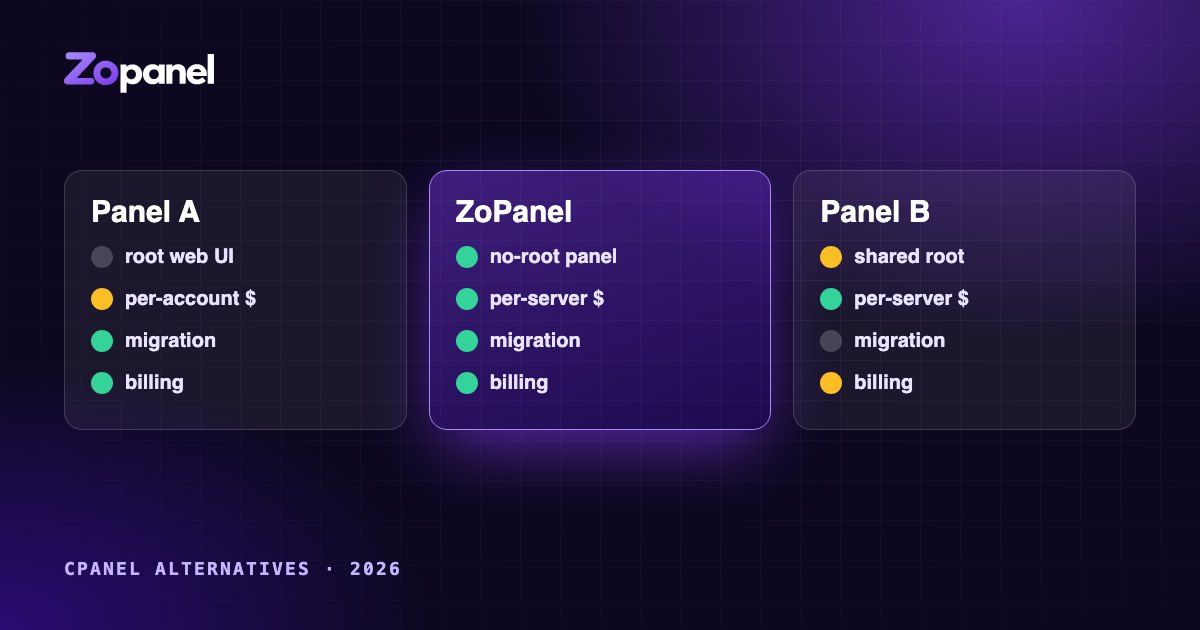
Choosing a cPanel alternative in 2026: what to look for
A practical guide to comparing hosting control panels in 2026: security architecture, account isolation, per-account vs per-server pricing, migration and billing.