How to install WordPress on a VPS: manual LEMP and control panel
Install WordPress on a VPS running Ubuntu 24.04 or Debian 12, by hand with Nginx, PHP, MariaDB and Let's Encrypt or with a control panel, then secure it.
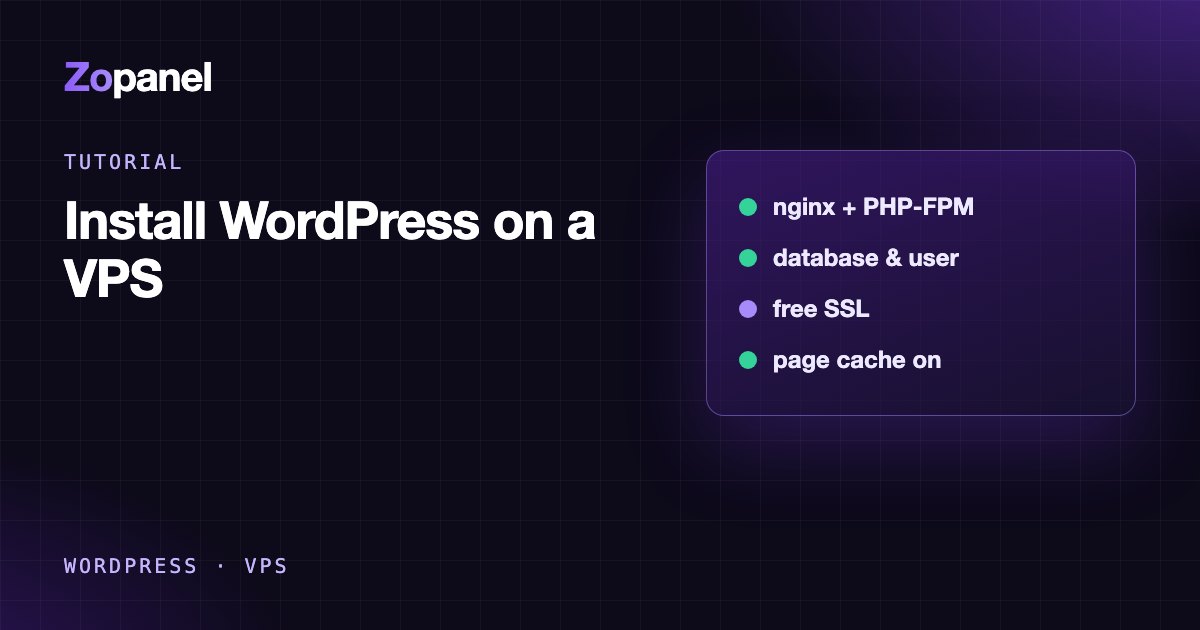
Key takeaways
- To install WordPress on a VPS you need a domain pointing to the server, a web server, PHP 8.3 or newer and MariaDB 10.11 or newer.
- A manual install takes 30 to 60 minutes; a control panel does it in a few minutes.
- After installing, turn on SSL and page cache, keep backups off the server and move wp-cron to a system cron.
- Sites that all run as www-data are not isolated from each other; give each site its own user once you host more than one.
To install WordPress on a VPS you need four things: a VPS running Ubuntu 24.04 or Debian 12, a domain whose A record points to the server's IP, a web stack (Nginx, PHP, MariaDB) and an SSL certificate. There are two ways to get there: by hand on the command line (30 to 60 minutes, and you understand every piece) or with a control panel that does it all in a few minutes.
This guide covers both, command by command, on Ubuntu 24.04 (Debian 12 is almost identical, and the differences are noted). Then come the things to do right after installing so the site is fast and safe, and a table of common errors.
What do you need before you install WordPress on a VPS?
Software versions. The official WordPress requirements recommend PHP 8.3 or newer and MariaDB 10.11 or newer (or MySQL 8.0 or newer), plus HTTPS support. Ubuntu 24.04 ships PHP 8.3 and MariaDB 10.11. Debian 12 ships PHP 8.2: WordPress runs fine on it, but it is below the recommendation.
Server size. A small WordPress site runs on a 1 GB VPS; 2 GB or more gives you room for updates, backups and traffic spikes. If you plan to host many sites, see our measurements on a 4 GB VPS: page cache decides most of the capacity.
A domain. Create A records for example.com and www pointing to the VPS before you start, because Let's Encrypt only issues a certificate once the name resolves to your server. Check from your computer:
dig +short example.com
dig +short www.example.com
Both must return the VPS's IP. DNS changes can take from minutes to a few hours to spread.
Access. SSH as root or a user with sudo, ideally with an SSH key rather than a password.
Option 1: install WordPress on a VPS with a control panel
If you manage several sites, or would rather not maintain Nginx and PHP configuration yourself, a control panel is the fastest route. Here is how it works with ZoPanel on a fresh Ubuntu or Debian server.
Step 1: install the panel
curl -fsSL https://get.zopanel.net | sudo bash
The installer updates the system, installs Nginx, PHP, MariaDB and wp-cli, and turns on the UFW firewall, Fail2ban and automatic security updates. When it finishes, it prints https://YOUR-SERVER-IP:8888 and the admin password. See the installation guide for options.
Step 2: create a WordPress website
- Go to Websites and click New website.
- Choose the Owner (a hosting account) and enter the Domain, for example
example.com. - Set Website type to WordPress.
- Fill in Site title, Admin email, Admin username and Admin password. Do not use
adminas the username; it is the first name bots try. - Keep Free SSL (Let's Encrypt) on and click Create website.
ZoPanel creates the database, installs the latest WordPress with wp-cli and issues the certificate first when the domain already points to the server, so WordPress starts on https://. If DNS is not ready yet, the panel checks every hour and issues the certificate as soon as the domain resolves.
Step 3: three switches to turn on
- Page cache on the PHP & config tab: Nginx serves whole pages to anonymous visitors without running PHP. Logged-in users, carts, checkout and admin pages always bypass it.
- Server runs scheduled tasks in the Maintenance card of the WordPress tab: replaces visitor-driven wp-cron with a system timer every 5 minutes.
- Apply all in the Security card of the WordPress tab: disables the file editor, checks
wp-config.phppermissions, blocks PHP in uploads and rotates the security keys.
Each site runs as its account's own Linux user, with its own PHP-FPM pool and its own CPU and memory limits, so a hacked site cannot read another account's files. The Free plan covers up to 10 websites, enough for most individuals and small agencies. All the WordPress tools are described in the WordPress Toolkit docs.
Option 2: install WordPress manually on Ubuntu 24.04 (LEMP)
This route shows you every layer. Replace example.com with your domain and run the commands as a sudo user.
Step 1: update the system and enable the firewall
sudo apt update && sudo apt upgrade -y
sudo ufw allow OpenSSH
sudo ufw allow 80,443/tcp
sudo ufw enable
If SSH listens on a port other than 22, allow that port before ufw enable, or you will lock yourself out.
Step 2: install Nginx, PHP-FPM and MariaDB
sudo apt install -y nginx mariadb-server \
  php-fpm php-mysql php-curl php-gd php-intl php-mbstring \
  php-xml php-zip php-imagick
php -v
The php-* packages install the distribution's default PHP: 8.3 on Ubuntu 24.04, 8.2 on Debian 12. Note the version; it appears in the socket path in step 5.
Raise the upload limits (the default 2 MB is too small for themes and images) in /etc/php/8.3/fpm/php.ini:
upload_max_filesize = 64M
post_max_size = 64M
memory_limit = 256M
sudo systemctl restart php8.3-fpm
Step 3: secure MariaDB and create the database
sudo mariadb-secure-installation
On Ubuntu and Debian, MariaDB's root user signs in through the Unix socket, and you can keep that; remove the anonymous users and the test database. Then create a database just for WordPress:
sudo mariadb
CREATE DATABASE wordpress DEFAULT CHARACTER SET utf8mb4 COLLATE utf8mb4_unicode_ci;
CREATE USER 'wpuser'@'localhost' IDENTIFIED BY 'use-a-long-random-password';
GRANT ALL PRIVILEGES ON wordpress.* TO 'wpuser'@'localhost';
FLUSH PRIVILEGES;
EXIT;
One database and one user per site. Never let WordPress use MariaDB's root account.
Step 4: download WordPress
cd /tmp
curl -LO https://wordpress.org/latest.tar.gz
tar xzf latest.tar.gz
sudo mkdir -p /var/www/example.com
sudo cp -a wordpress/. /var/www/example.com/
sudo chown -R www-data:www-data /var/www/example.com
Only download WordPress, themes and plugins from official sources. "Nulled" packages are one of the most common ways malware gets onto a site.
Step 5: configure Nginx
Create /etc/nginx/sites-available/example.com:
server {
    listen 80;
    listen [::]:80;
    server_name example.com www.example.com;
    root /var/www/example.com;
    index index.php;
    client_max_body_size 64m;

    location / {
        try_files $uri $uri/ /index.php?$args;
    }

    # Never run PHP from uploads (must come BEFORE the PHP block below)
    location ~* /wp-content/uploads/.*\.php$ {
        deny all;
    }

    location = /xmlrpc.php {
        deny all;
    }

    location ~ /\.(?!well-known) {
        deny all;
    }

    location ~ \.php$ {
        include snippets/fastcgi-php.conf;
        fastcgi_pass unix:/run/php/php8.3-fpm.sock;
    }
}
Nginx checks location ~ blocks in the order they appear, so the uploads rule has to sit above the \.php$ block. Blocking xmlrpc.php breaks plugins and apps that rely on XML-RPC; remove that block if you need it. The WordPress Nginx documentation has a fuller reference configuration.
Enable the site and test:
sudo ln -s /etc/nginx/sites-available/example.com /etc/nginx/sites-enabled/
sudo nginx -t && sudo systemctl reload nginx
On Debian 12, use php8.2-fpm.sock instead of php8.3-fpm.sock.
Step 6: add a Let's Encrypt certificate
sudo apt install -y certbot python3-certbot-nginx
sudo certbot --nginx -d example.com -d www.example.com
Certbot obtains the certificate, switches the Nginx configuration to HTTPS and redirects HTTP to HTTPS. The Ubuntu and Debian certbot packages include a systemd timer that renews certificates; check it with systemctl list-timers | grep certbot and test with sudo certbot renew --dry-run.
Step 7: finish in the browser
Open https://example.com. The WordPress installer asks for the database name (wordpress), user (wpuser), password and host (localhost), then writes wp-config.php with random security keys. Set the site title and an admin user (not admin). Finally, tighten the config file:
sudo chmod 640 /var/www/example.com/wp-config.php
What to do right after installing WordPress
Installing is half the job. Whichever route you took:
-
Move wp-cron to a system cron. By default WordPress runs scheduled tasks on visitor requests: quiet sites run them late, busy sites pay for an extra PHP request. Add
define('DISABLE_WP_CRON', true);towp-config.php, runsudo crontab -u www-data -eand add:*/5 * * * * cd /var/www/example.com && php wp-cron.php >/dev/null 2>&1 -
Turn on caching. Page cache (Nginx FastCGI cache or a caching plugin) is the biggest single factor for speed and capacity.
-
Add basic hardening. Add
define('DISALLOW_FILE_EDIT', true);towp-config.phpso a stolen admin login cannot edit PHP files, enable two-factor authentication for admins, and run Fail2ban for SSH. -
Back up off the server. Back up both files (
/var/www/example.com) and the database (mariadb-dump) daily, and keep a copy somewhere other than the VPS. A backup is only proven once you have restored it. -
Keep everything updated. Enable the OS's automatic security updates (
unattended-upgrades) and update WordPress, plugins and themes weekly.
A note on hosting several sites: with the manual setup above, every site runs as www-data in one shared PHP-FPM pool. If one site is compromised, the malware can read every other site's files. Once you host two or more sites, create a separate PHP-FPM pool with its own Linux user per site, or use a panel that isolates accounts for you.
Common errors when you install WordPress on a VPS
| Error | Usual cause | Fix |
|---|---|---|
502 Bad Gateway |
Wrong PHP-FPM socket path, or PHP-FPM not running | Check ls /run/php/ and systemctl status php8.3-fpm |
| "Error establishing a database connection" | Wrong database name, user or password | Try mariadb -u wpuser -p wordpress with the same details |
| Certbot validation fails | Domain not pointing to the VPS, or port 80 blocked | dig +short example.com; open port 80 in UFW and in the provider's firewall |
| Upload exceeds the maximum size | upload_max_filesize or client_max_body_size too small |
Raise both, restart PHP-FPM, reload Nginx |
| Permalinks return 404 | Missing try_files ... /index.php?$args |
Check the location / block |
| WordPress asks for FTP details to install plugins | PHP cannot write to the site folder | Make the file owner match the user PHP-FPM runs as |
Conclusion
Installing WordPress on a VPS is not hard: a domain that resolves correctly, Nginx, PHP, MariaDB and a certificate. Doing it by hand once is a great way to understand your server. As the number of sites grows, the work shifts from installing to operating: isolation, caching, safe updates and backups. If you would like a panel to handle that, try ZoPanel Free (10 websites, 10 databases) with the first website guide.
Frequently asked questions
How much RAM do I need to run WordPress on a VPS?
A small site runs on 1 GB, but 2 GB or more is more comfortable for updates, backups and traffic spikes. In our measurements, a 4 GB VPS hosted about 100 WordPress sites without page cache and about 250 with it.
Should I use Nginx or Apache for WordPress?
Both run WordPress well. Nginx is lighter for static files and page caching but does not read .htaccess, so some plugins need equivalent rules in the Nginx config. Apache is convenient when a site depends heavily on .htaccess.
How long does a manual WordPress install take?
For someone comfortable on the command line, about 30 to 60 minutes per site, not counting DNS propagation. With a control panel, the install itself takes a few minutes.
Do I need SSL for WordPress?
Yes. HTTPS protects logins and visitor data, browsers warn on non-HTTPS pages, and WordPress recommends hosts that support HTTPS. Let's Encrypt certificates are free and renew automatically.
Can I install WordPress on Debian 12?
Yes. Debian 12 ships PHP 8.2, which runs WordPress fine but is below the recommended 8.3. The commands in this guide are the same; just use the php8.2-fpm.sock socket and /etc/php/8.2/fpm/php.ini.
Install ZoPanel free
One command on a fresh Ubuntu or Debian server. Up and running in minutes.
Install in 5 minutesKeep reading
How to secure an Ubuntu VPS: 10 steps for the first hour
Secure an Ubuntu VPS (24.04) step by step: SSH keys, no password logins, UFW, Fail2ban, automatic updates and backups, with exact commands and traps to avoid.
How to migrate from cPanel to a VPS without losing data
A step-by-step guide to migrate cPanel hosting to a VPS: full cpmove backup, sites, databases and email, testing before the DNS switch, and avoiding downtime.
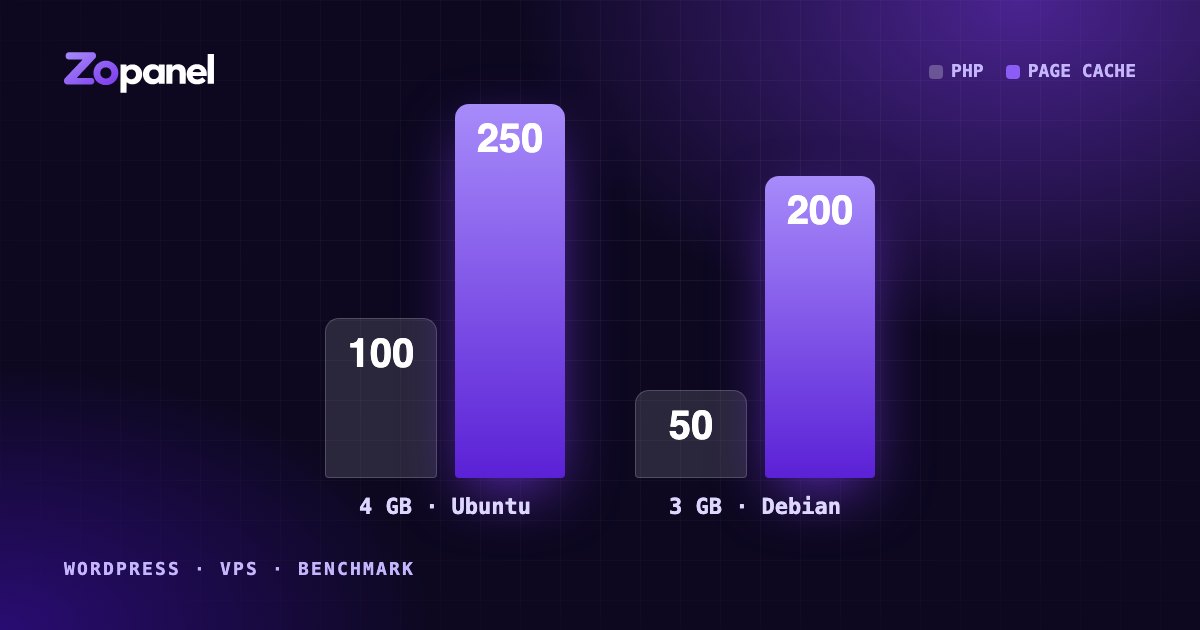
How many WordPress sites can a 4 GB VPS host? Our measurements
We loaded real WordPress sites and apps onto 4 GB and 3 GB VPS servers until they broke. Here is what fit, why page cache matters most, and how to plan.