Uptime monitoring and a status page for small hosting providers
How a small hosting provider should set up uptime monitoring and an Uptime Kuma status page: what to monitor, where to run it and how to post incident updates.
Key takeaways
- Monitor from outside your own servers and, ideally, from another provider, or your monitoring goes down together with what it watches.
- Watch services, not just servers: a canary website, the panel, mail ports, both nameservers, SSL expiry and backup jobs.
- An Uptime Kuma status page grouped by server and service lets customers check for themselves before they open a ticket.
- During an incident, post early and update on a schedule using four clear states: Investigating, Identified, Monitoring, Resolved.
For a small hosting provider, an Uptime Kuma status page works best when Uptime Kuma runs outside your hosting servers, ideally at another provider, checks every service customers depend on (web, panel, mail, DNS, SSL and backups), and publishes a status page on its own subdomain grouped by server and service. When something breaks, you post an incident on that page within minutes and update it on a schedule until it is resolved. That combination tells you about outages before customers do and cuts the flood of "is the server down?" tickets.
This article is about the hosting-provider side: what to monitor, how to route alerts, how to structure the status page and how to write incident updates. For installing and configuring Uptime Kuma itself, see our guide to self-hosting Uptime Kuma.
Why a hosting provider needs both monitoring and a status page
Monitoring and a status page solve two different problems.
- Monitoring is for you. It answers "is something broken right now?" and wakes the right person.
- A status page is for customers. It answers "is it them or is it me?" without a ticket, and shows that you know and are working on it.
When you host a few hundred sites, even a short outage produces a wave of messages on email, Zalo, Telegram or your ticket desk, each one asking the same question. A status page link in your welcome email, client area and support auto-reply turns most of those into a single page view. It also builds trust over time: a public record of honest incident updates is more convincing than a promise of "99.99% uptime" on a sales page.
Where to run your monitoring
The most important rule is simple: do not monitor a server from itself. A monitor that runs on the server it watches goes down with that server and cannot alert you. ZoPanel's own Uptime Kuma documentation makes the same point: for production monitoring, install it on a different server, ideally with another provider.
| Layer | What it catches | What it misses |
|---|---|---|
| Checks on the server itself (panel or local scripts) | A site returning 5xx errors, a crashed PHP pool, a stopped service | Network outages, DNS problems, the whole server being down |
| External monitor at the same provider | Server down, service down, most network problems | An outage of the provider's whole region or network |
| External monitor at another provider | All of the above, including provider-wide outages | Problems only some visitors see (one country, one ISP) |
A practical setup for a small host: keep the panel's built-in checks for fast, detailed alerts, and run Uptime Kuma on a small VPS at a different provider for the outside view and the public status page. Host the status page's DNS somewhere other than your own nameservers too, so it still resolves when your DNS servers are the problem.
What to monitor on each hosting server
Monitor what customers use, not just whether the machine answers ping. Uptime Kuma supports HTTP(s), HTTP(s) keyword, TCP port, ping, DNS record and push monitors, among others, according to its project page.
| Monitor | Uptime Kuma type | Why |
|---|---|---|
| A canary website on each server | HTTP(s) - Keyword | Proves nginx, PHP and the database answer; the keyword catches error pages that still return 200 |
| The control panel | HTTP(s) | Customers notice when they cannot log in |
| SMTP (25), submission (465/587), IMAP (993) | TCP Port | Mail problems generate the angriest tickets |
ns1 and ns2 |
DNS (query a known record on each) | If DNS fails, every site on every server looks down |
| SSL expiry of the panel and key sites | HTTP(s) with certificate expiry notification | Catches failed renewals before browsers do |
| Nightly backups and important cron jobs | Push | The job calls a URL when it finishes; silence means it failed |
| Your website and client area | HTTP(s) | Customers need to pay and open tickets during an outage |
For a canary site, create a tiny PHP page that runs one database query and prints a fixed word, such as canary-ok, and point a keyword monitor at it. It is a better signal than any single customer site, which may be down for reasons of its own.
You do not need to monitor every customer site from the outside. Watch a canary per server, plus your largest or most sensitive customers if their contracts promise it.
Alert rules that do not wear you out
Alert fatigue kills monitoring faster than any outage. A few rules:
- Retry before alerting. Set retries to 1 or 2 on a 60-second interval, so one slow response does not page anyone.
- Route by severity. A whole server down goes to the phone (Telegram or a call); a single SSL warning can go to email.
- Use maintenance windows. Uptime Kuma added a maintenance feature in version 1.19.0 that temporarily disables notifications and shows a maintenance message on status pages. Schedule it for planned reboots and upgrades.
- Test notifications monthly. A Telegram bot token that expired or an SMTP password that changed is only discovered during a real outage otherwise.
How to structure the status page
Customers think in services and servers, so group the page that way. One group per server, with a monitor per service, works well for a small host:
| Group | Monitors shown |
|---|---|
Server hk1 (shared hosting) |
Websites, Control panel, Email (SMTP), Email (IMAP) |
Server sg2 (WordPress hosting) |
Websites, Control panel, Email |
| DNS | ns1.yourbrand.com, ns2.yourbrand.com |
| Company services | Website, Client area and billing, Support desk |
Name groups the way customers know them. If your welcome email says "Server: hk1", the status page should too. Put it on its own subdomain, for example status.yourbrand.com; Uptime Kuma can serve different status pages based on the domain name, as described in its status page wiki. That same page notes that the public status page caches results and refreshes every five minutes, so it is a communication tool, not a real-time dashboard.
Uptime figures and what they mean
If you show uptime percentages, know what they allow. Over a 30-day month:
| Uptime | Allowed downtime per 30 days |
|---|---|
| 99% | About 7 hours 12 minutes |
| 99.9% | About 43 minutes |
| 99.95% | About 22 minutes |
| 99.99% | About 4 minutes |
Promise only what one server at one provider can realistically deliver, and remember that the status page will show the truth either way.
Writing incident updates
The status page earns its value during incidents. A widely used model comes from Atlassian Statuspage, whose incident documentation defines four states:
| State | Meaning | Example update |
|---|---|---|
| Investigating | You see the symptoms but not yet the cause | "Websites on server hk1 are not loading. We are investigating." |
| Identified | You found the cause and are working on a fix | "A disk on hk1 failed. We are moving the server to a spare disk; estimated 45 minutes." |
| Monitoring | The fix is in place; you are watching | "hk1 is back online. We are monitoring and checking mail queues." |
| Resolved | Everything is back to normal | "Resolved. Downtime 09:12 to 09:58 (UTC+7). A summary follows by email." |
Guidelines that make updates useful:
- Post within minutes, even if all you know is "we are investigating." Silence is what makes customers angry.
- Say who is affected: which server, which service. "Email on hk1 only; websites are working" saves you a hundred tickets.
- Give the next update time, for example "next update in 30 minutes", and keep that promise even if there is nothing new.
- Use one time zone and say which. For Vietnamese customers, UTC+7.
- Write a short follow-up for major incidents: what happened, what you changed so it does not happen again.
In Uptime Kuma 1.x, an incident is a message you pin at the top of the status page, with a title, content, a style (such as info, warning or danger) and created and last-updated times, as its status page source shows. Edit the same incident for each update and add the time to each line, so the history stays readable. If you need features such as customer subscriptions to incident updates, check what your Uptime Kuma version offers, or compare it with a hosted status page service; hosted services cost money but stay up independently of your infrastructure.
Monitoring and status pages with ZoPanel
ZoPanel covers the inside view itself. It checks each active website through the local nginx and marks it down after two failures in a row, a watchdog restarts services that stop or hang, and alerts for Website down, Service down or restarted, Disk almost full, SSL renewal failed and Fleet server unreachable go out by email, Telegram or a Discord/Slack webhook. Customers and resellers can subscribe to their own alerts in My account → Notifications (operations docs).
For the outside view and the status page, install Uptime Kuma from the App Store on a separate ZoPanel server, ideally at another provider. It needs 512 MB of RAM, gets its own subdomain with a Let's Encrypt certificate, sits behind a setup lock until you create the admin account, and has app backups from its Docker tab (Uptime Kuma app docs).
Limits to know. ZoPanel's catalog uses the Uptime Kuma 1.x line, while Uptime Kuma 2.0 was released in October 2025, so you will not get 2.0 features from the App Store image. And because the app runs in a firewalled container, it cannot check SSH, MariaDB or Redis on the same server, nor private networks; those are other reasons to run it on a different server. See the operations features page for everything ZoPanel monitors on its own.
Conclusion
A useful monitoring setup for a small hosting provider is not complicated: built-in checks on each server, one external Uptime Kuma at another provider watching canary sites, mail, DNS, SSL and backups, and a public status page on its own subdomain. The habit that matters most is communication: post early, say who is affected, and update on schedule until you can write "Resolved."
If you are building a hosting business, our guide to starting a web hosting business covers the rest of the stack. ZoPanel's Free plan includes the App Store, built-in uptime checks and alerts, for 3 hosting accounts and 10 websites with no time limit.
Frequently asked questions
Can I host the status page on the same server as my customers' sites?
You can, but it goes down exactly when customers need it. Run the status page and its monitor on a separate server, ideally at another provider, and keep its DNS outside your own nameservers.
Is Uptime Kuma good enough for a hosting company?
For a small or mid-sized host, it usually is: it is free under the MIT license, supports many monitor types and 90+ notification services, and serves public status pages on your own domain. Larger providers sometimes prefer hosted status page services for subscriber notifications and independence from their own infrastructure.
How often should monitors check?
Every 60 seconds with one or two retries is a good default for web and mail. Backups and cron jobs use push monitors with a window that matches the job's schedule, for example 25 hours for a nightly backup.
What should I do if the monitoring server itself goes down?
Add a second, very simple check on it from a different service, for example a free external uptime checker pointed at your status page. That way you hear about it if your monitor goes quiet.
Should I show uptime percentages publicly?
Yes, if you are confident in them. Honest figures over 30 or 90 days build trust; inflated promises do the opposite, because customers can compare them with what they experienced.
Install ZoPanel free
One command on a fresh Ubuntu or Debian server. Up and running in minutes.
Install in 5 minutesKeep reading
Coolify vs a hosting control panel: which one do you need?
Coolify vs cPanel-style hosting panels: what Coolify, Dokploy and CapRover do, what a panel does, and how to choose for Docker apps, PHP sites and email.
Hosting for web design agencies: host client sites profitably
Agency web hosting that makes money: what to charge per client site, a worked margin example, how to set up accounts, and client logins under your brand.
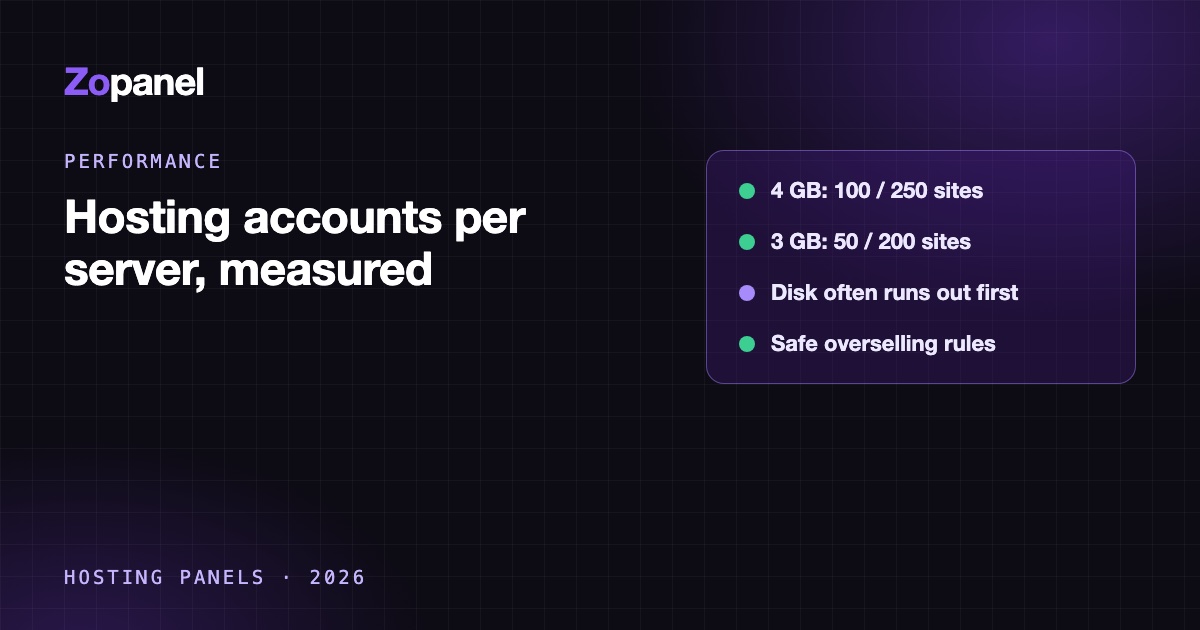
How many hosting accounts fit on one server? Real numbers
How many hosting accounts per server, from our own load tests on 4 GB and 3 GB VPS, plus how disk, mail, apps and overselling change the number you can sell.