Migrate website without downtime: a safe 7-step plan
How to migrate website without downtime: lower TTLs, copy data, test the new server via your hosts file, prepare SSL, do a final sync and switch DNS invisibly.
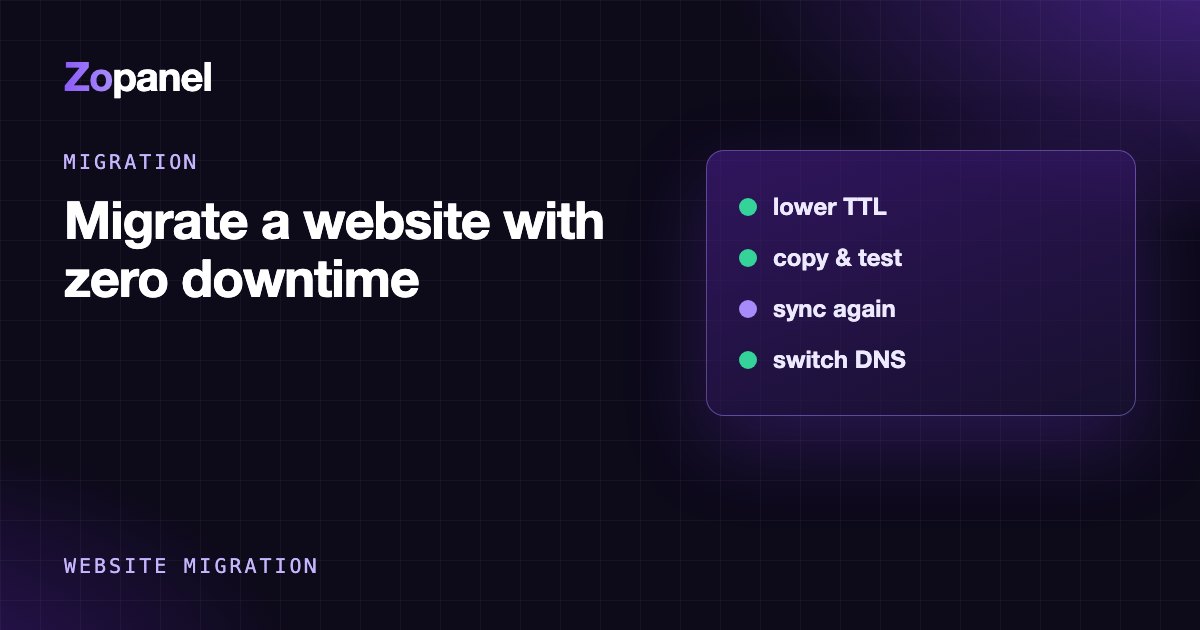
Key takeaways
- Downtime during a migration almost always comes from DNS, SSL and in-flight writes, not from copying files.
- Lower the TTL to 300 seconds at least one old TTL ahead, usually 24 to 48 hours.
- Test the site on the new server with your hosts file or curl --resolve before touching DNS.
- Keep the old server running for at least 48 hours after the switch to catch stragglers.
You can migrate a website without downtime by building a full copy on the new server, testing it while the old server keeps serving visitors, and only then changing DNS. At every moment, at least one server answers correctly. The whole trick comes down to three things: lower your DNS TTL in advance, have a valid SSL certificate on the new server before the switch, and make sure data written during the move (orders, comments, email) does not get lost.
This guide walks through the seven-step process we use for anything from a single site to a server with hundreds of accounts: prepare, copy, test, switch, clean up. Each step shows the manual way with real commands, and how ZoPanel handles it if your new server runs ZoPanel.
Why do website migrations cause downtime?
Copying files and databases rarely breaks anything. Downtime comes from the parts people forget:
| Cause | What visitors see | How to avoid it |
|---|---|---|
| High DNS TTL (e.g. 86400 s) | Some visitors keep hitting the old server for a day | Lower the TTL 24–48 hours ahead |
| No SSL on the new server yet | Certificate warnings right after the switch | Install a certificate before switching DNS |
| Writes to the old server after the copy | Lost orders, comments, sign-ups | Freeze writes and do a final sync |
| Forgotten AAAA (IPv6) record | IPv6 users still reach the old server, or fail | Update or remove AAAA together with A |
| Changing nameservers and IP at once | Up to 48 hours of mixed answers, no quick rollback | Do the two changes separately |
| Mail arriving at the old server | Messages "missing" from the new mailbox | Sync mailboxes after the MX change |
Handle all six and your visitors will not notice a thing.
Step 1: Inventory everything before you move
Write down what the site depends on:
- Domains: aliases, subdomains and
www. - Every DNS record: A, AAAA, CNAME, MX, TXT (SPF, DKIM, DMARC, Google or Microsoft verification), SRV. Export or screenshot the zone.
- Databases and their users, the PHP version and any unusual PHP extensions.
- Cron jobs, background workers and queue consumers.
- Email: mailboxes, sizes, forwarders.
- Hard-coded IPs of the old server: app config, payment gateway allow-lists, third-party APIs, partners' firewalls.
The last item is the one people miss. A payment gateway that only accepts callbacks from the old IP can break checkout while the site itself looks perfectly fine.
Step 2: Lower your DNS TTL in advance
The TTL is how long resolvers (your ISP's, Google's, Cloudflare's) may cache a record. With an A record at 86400 seconds, some users can keep landing on the old server for up to a day after you change the IP.
Check the current values:
dig +noall +answer example.com A
dig +noall +answer example.com MX
The second column is the remaining TTL in seconds. Lower A, AAAA and MX to 300 seconds wherever your DNS is hosted, and do it at least one old TTL before the move: a one-day TTL means lowering it at least a day ahead, and 48 hours is safer. Lowering it an hour before the switch does nothing for resolvers that cached the old, long TTL.
One important distinction: changing an A record is not the same as changing nameservers. An A record change depends only on the TTL you control. A nameserver change at your registrar depends on the parent zone: for .com, the delegation NS records served by the registry carry a TTL of 172800 seconds (48 hours), and you cannot lower that. If you also want to move DNS to a new provider, do it in two rounds: first copy the zone to the new nameservers (still pointing at the old server), switch nameservers and wait 48 hours; then change the IP. Our guide to pointing a domain to a VPS covers the records in detail.
Step 3: Copy the data to the new server
The manual way
Copy files with rsync over SSH, running it on the new server and adjusting paths for your setup:
rsync -az --info=progress2 -e ssh \
  olduser@OLD_IP:/home/olduser/public_html/ \
  /var/www/example.com/public_html/
Dump the database on the old server. For InnoDB, --single-transaction gives a consistent dump without locking tables:
mysqldump --single-transaction --quick --routines --triggers \
  -u dbuser -p dbname | gzip > dbname.sql.gz
Import it on the new server once the database and user exist:
gunzip < dbname.sql.gz | mysql -u dbuser -p dbname
Then check file ownership (rsync run as root can leave files with a uid that does not match the site's user on the new server) and update the database credentials in wp-config.php or .env if any of them changed.
With ZoPanel
If the old server runs cPanel or DirectAdmin, open Migrate in in the admin menu. Upload a full account backup (up to 50 GB) or give a download URL, review the analysis, resolve any name conflicts and click Start import. Websites, databases, mailboxes, forwarders and cron jobs are recreated; a cPanel backup also brings its SSL certificates, and its DNS zones when the DNS server is installed. Database passwords are kept when the hash format allows; otherwise a new one is generated and written into the application's config file.
To move a whole server, use Migrate in → Move a whole server: enter the old server's address and root SSH credentials, tick the accounts, and ZoPanel makes each backup there, downloads it, imports it and cleans up, one account at a time. Between two ZoPanel servers, Move websites (through central management) keeps database names, users and passwords, so wp-config.php needs no edits. In every case the old server is left unchanged. The migration docs list exactly what is and is not carried over; coming from cPanel, see also migrating from cPanel to a VPS.
Step 4: Test the new server before DNS changes
This is the step that turns "I hope it works" into "I know it works". You make your own machine resolve the domain to the new IP while everyone else still uses the old server.
On Linux and macOS add a line to /etc/hosts (on Windows, C:\Windows\System32\drivers\etc\hosts, edited with Notepad run as Administrator):
203.0.113.10 example.com www.example.com
where 203.0.113.10 is the new server. Open a private browser window and walk through the important flows: home page, admin login, search, contact form, cart and a test checkout. Remove the line afterwards, or you will be silently pinned to one server and confuse yourself later.
For a quick command-line check, curl --resolve does the same without touching the hosts file:
curl -sI --resolve example.com:80:203.0.113.10 http://example.com/
A 200 (or a 301 to HTTPS) is a good sign. A 500 means you should read the PHP error log before going any further.
Step 5: Have SSL ready before the switch
Let's Encrypt validates domain control over HTTP (the HTTP-01 challenge) or DNS (DNS-01), as described in its challenge types documentation. With HTTP-01 the domain must already point to the new server, which leaves a short gap after the DNS switch where the new server has no valid certificate. Two ways to close it:
- Bring the current certificate with you. The certificate and private key from the old server stay valid for the domain on any server until they expire. Install them on the new server, switch DNS, and request a fresh certificate afterwards.
- Use DNS-01, if you control the zone and your ACME client supports your DNS provider.
In ZoPanel, a cPanel import installs the account's certificates as custom certificates automatically. Otherwise, paste the certificate and key into Custom certificate on the website's SSL tab. Once DNS points only to the new server, click Issue certificate to move to Let's Encrypt and check that auto renewal is on. For new sites created with Free SSL (Let's Encrypt), ZoPanel re-checks DNS every hour and issues the certificate as soon as the domain resolves only to this server. See the SSL docs.
Step 6: Freeze writes and run a final sync
A static site or a rarely updated blog can skip this. A site that writes constantly (WooCommerce, forums, booking systems) cannot: any order placed on the old server after your dump will not exist on the new one.
In practice:
- Pick your quietest hour from your analytics.
- Turn on maintenance mode, or disable writes (checkout, sign-ups) on the old server. For a small site this takes a few minutes.
- Take a final database dump and import it on the new server. Run
rsyncagain to pick up new uploads. - Switch DNS immediately (step 7) and re-enable writes on the new server.
To be honest about it: for a site that takes writes, "without downtime" really means "no errors, and a few minutes without new orders". Truly zero pause needs something more advanced, such as turning the old server into a reverse proxy to the new one right after the final sync, so every write lands in a single database. It works, but it is considerably more complex and only worth it for a high-revenue store.
Step 7: Switch DNS and watch
- Change the A record (and AAAA if the new server has IPv6; if not, remove the old AAAA) to the new IP.
- If the new server handles mail, change MX and update SPF. During the transition, allow both IPs, for example
v=spf1 ip4:OLD_IP ip4:NEW_IP mx ~all, and drop the old one after a few days. - Check several public resolvers:
dig +short example.com A @1.1.1.1
dig +short example.com A @8.8.8.8
- Tail the access logs on both servers. Traffic to the old one should fall to almost nothing within a few TTLs. Some resolvers hold records longer than the TTL, so keep the old server running for 48 to 72 hours before cancelling it.
- For email: messages sent during the switch may still land on the old server. Once MX has settled, sync the mailboxes from old to new with a tool like imapsync, which only copies what is missing.
- When everything is stable, raise the TTL again (say 3600 seconds).
Common mistakes to avoid
- Cancelling the old server the day the new one works. Wait a few days and keep one last backup.
- Forgetting cron and background jobs. The site loads, but reminder emails, stock syncs or backups have quietly stopped.
- Running cron on both servers. The opposite problem: customers get every email twice and orders are processed twice. Disable cron on the old server at the switch.
- Skipping the new IP's reverse DNS and blocklist check before sending mail from it.
- Changing too much at once: server, PHP version, theme and nameservers in one night. When something breaks, you will not know which change did it. Migrate first, upgrade later.
Conclusion
Migrating a website without downtime needs no magic, just the right order: lower the TTL early, copy the data, test through your hosts file, prepare SSL, do a final sync, switch DNS and keep the old server for a few days. Nearly every migration incident comes from skipping one of these steps.
If your new server runs ZoPanel, importing cPanel or DirectAdmin accounts, even a whole server, is automated. The Free plan gives you 3 hosting accounts, 10 websites and 10 databases with no time limit, enough to move a few real sites before you commit. See pricing and the migration guide to get started.
Frequently asked questions
How long does DNS take to update after a migration?
If you lowered the TTL to 300 seconds in advance, most visitors reach the new server within minutes of the A record change. If you change nameservers at the registrar, allow up to 48 hours for .com domains, because the parent zone's TTL is outside your control.
Can I migrate hosting without changing nameservers?
Yes, and it is usually the fastest route. Keep your current DNS provider and only change the A, AAAA and MX records to the new IP. If you want to move DNS too, do it as a separate step before or after the server move.
Does WordPress need changes after moving servers?
If the domain stays the same, no URL search-replace is needed. Check the database credentials in wp-config.php, file permissions, the PHP version and cron. Between two ZoPanel servers, database names, users and passwords are kept, so wp-config.php does not change.
Will I lose email when I migrate?
Not if you follow the order: copy the mailboxes first, lower the MX TTL, switch MX, then sync any messages that reached the old server during the change. Keep the old mailboxes for a few days to compare.
Install ZoPanel free
One command on a fresh Ubuntu or Debian server. Up and running in minutes.
Install in 5 minutesKeep reading
Cloudflare with VPS hosting: SSL, DNS and real visitor IPs done right
How to use Cloudflare with VPS hosting: Full (strict) SSL, which records to proxy, real visitor IPs, and how to avoid redirect loops and origin IP leaks.

Emails going to spam? Fix SPF, DKIM and DMARC step by step
Emails going to spam usually means missing SPF, DKIM or DMARC, bad reverse DNS or a blocklisted IP. Check and fix each one, with dig commands and Gmail's rules.
How to create private nameservers (ns1.yourdomain.com)
How to create private nameservers like ns1.yourcompany.com for hosting: register glue records, run authoritative DNS on two servers, verify with dig.