How to deploy a Node.js app to a VPS: nginx, SSL and systemd
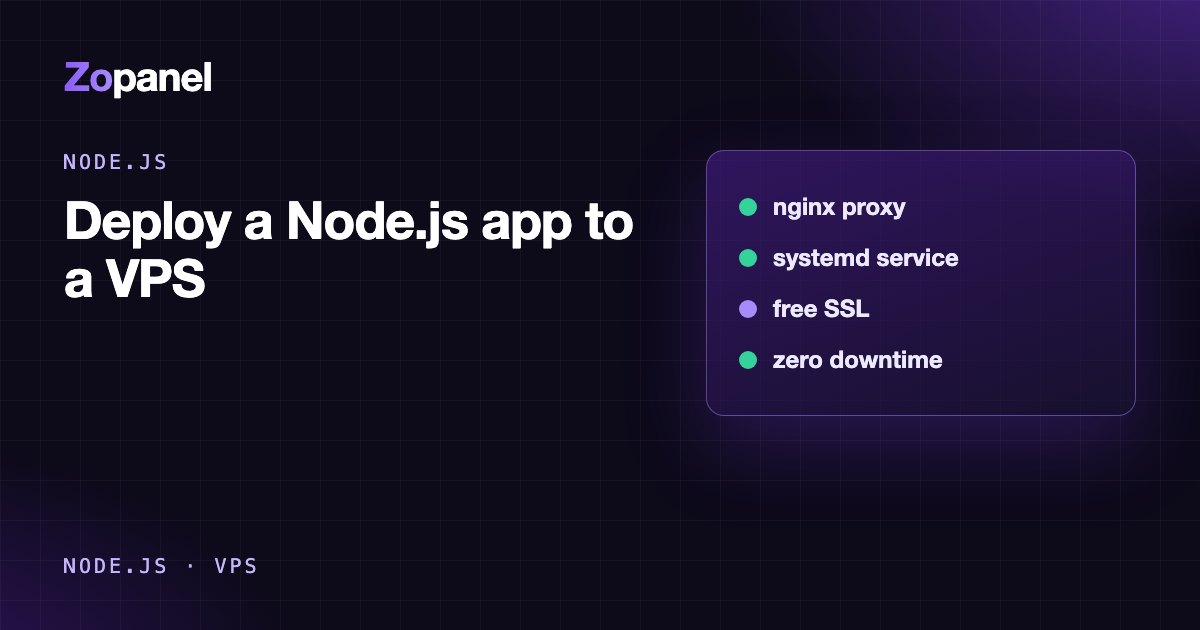
Deploy a Node.js app to a VPS on Ubuntu or Debian: Node LTS, systemd, an nginx reverse proxy, free SSL and zero-downtime updates, by hand or with ZoPanel.
Key takeaways
- A Node.js app should listen on 127.0.0.1 and let nginx handle the domain, SSL and static files.
- systemd is enough to keep an app running and restart it on failure; PM2 is optional.
- The nodejs package in Ubuntu 24.04 and Debian 12 is Node 18, which is end of life; use the 22 or 24 LTS.
- Zero-downtime updates need the new release to start and pass a health check before it gets traffic.
To deploy a Node.js app to a VPS you need four things: a supported Node.js LTS release, a process manager that keeps the app running (systemd or PM2), nginx as a reverse proxy in front of it, and an SSL certificate for your domain. The app listens only on 127.0.0.1; nginx takes requests from the internet on ports 80 and 443 and passes them in. By hand, the first deployment takes 30 to 60 minutes. With a control panel that understands Node.js apps, it takes a few.
This guide covers both: the manual way on Ubuntu 24.04 or Debian 12, every command with the reason behind it, and the same job in ZoPanel. It ends with common mistakes, zero-downtime updates and an FAQ.
What do you need before you deploy a Node.js app to a VPS?
- An Ubuntu 24.04 or Debian 12/13 VPS with root or sudo. A small Express or NestJS API runs fine in 1 GB of RAM. If you build Next.js on the server, plan for 2 GB or more: the build usually needs more memory than the running app.
- A domain with an A record pointing at the server's IP. See how to point a domain to a VPS if you have not done that yet.
- Your code on GitHub, GitLab or your machine, with a
startscript that works in production. - An app that reads its port from
PORTinstead of hard-coding it. It is a small habit that makes every deployment method easier.
On a brand-new server, do the security basics first: SSH keys, a firewall, automatic updates. Our guide to securing an Ubuntu VPS has the full list.
Which Node.js version should you run?
Use a supported LTS release. According to the Node.js release schedule, at the time of writing (October 2026) Node.js 24 and 22 are LTS, while Node.js 20 and 18 are end of life and no longer get security fixes.
A common trap: the nodejs package in Ubuntu 24.04's archive is Node 18.19, and Debian 12 ships Node 18.20. apt install nodejs gives you an unsupported runtime. This guide installs Node.js from the official builds on nodejs.org instead.
How to deploy a Node.js app to a VPS by hand
Step 1: Install Node.js LTS from the official build
These commands download the latest Node.js 24 build, verify its SHA-256 checksum before unpacking it, and install it under /opt/node. On an ARM64 server, replace linux-x64 with linux-arm64.
cd /tmp
curl -fsSLO https://nodejs.org/dist/latest-v24.x/SHASUMS256.txt
FILE=$(grep -o 'node-v24\.[0-9.]*-linux-x64\.tar\.xz' SHASUMS256.txt | head -n1)
curl -fsSLO "https://nodejs.org/dist/latest-v24.x/$FILE"
grep " $FILE\$" SHASUMS256.txt | sha256sum -c -
sudo mkdir -p /opt/node
sudo tar -xJf "$FILE" -C /opt/node --strip-components=1
sudo ln -sf /opt/node/bin/node /usr/local/bin/node
sudo ln -sf /opt/node/bin/npm /usr/local/bin/npm
sudo ln -sf /opt/node/bin/npx /usr/local/bin/npx
node -v && npm -v
If sha256sum -c does not print OK, stop: the download is not what nodejs.org published. To apply a patch release later, run the same block again and restart the app. If you prefer updates through apt, NodeSource's repository is the popular choice; follow their manual repository setup rather than piping a script you have not read into a shell.
Step 2: Create a dedicated user and fetch the code
Never run the app as root. Create a system user that cannot log in:
sudo adduser --system --group --home /srv/myapp myapp
sudo apt install -y git
sudo -u myapp git clone https://github.com/you/myapp.git /srv/myapp/app
cd /srv/myapp/app
sudo -u myapp npm ci --omit=dev
# If the app has a build step (Next.js, NestJS, TypeScript):
# sudo -u myapp npm ci && sudo -u myapp npm run build
npm ci installs exactly what package-lock.json says, so the server matches your machine. For a private repository, use a read-only deploy key, not your GitHub password.
Step 3: Run the app with systemd
systemd is already on every Ubuntu and Debian server. It starts the app at boot, restarts it when it crashes and collects its output in journalctl. Keep secrets in a file only root can read:
sudo tee /etc/myapp.env >/dev/null <<'EOF'
NODE_ENV=production
PORT=3000
DATABASE_URL=mysql://myapp:password@127.0.0.1/myapp
EOF
sudo chmod 600 /etc/myapp.env
Create /etc/systemd/system/myapp.service:
[Unit]
Description=My Node.js app
After=network.target

[Service]
User=myapp
Group=myapp
WorkingDirectory=/srv/myapp/app
EnvironmentFile=/etc/myapp.env
ExecStart=/usr/local/bin/node server.js
Restart=on-failure
RestartSec=5
# Hardening: the app cannot write outside the paths it needs
NoNewPrivileges=true
PrivateTmp=true
ProtectSystem=strict
ProtectHome=true
ReadWritePaths=/srv/myapp
MemoryMax=768M

[Install]
WantedBy=multi-user.target
Replace server.js with your entry point (or use /usr/local/bin/npm run start). Then enable it:
sudo systemctl daemon-reload
sudo systemctl enable --now myapp
systemctl status myapp
journalctl -u myapp -f        # follow the logs
curl -I http://127.0.0.1:3000 # is the app answering?
In your code, listen on 127.0.0.1, not 0.0.0.0, so the app is never exposed directly:
app.listen(process.env.PORT, "127.0.0.1");
Step 4: Put nginx in front as a reverse proxy
sudo apt install -y nginx
Create /etc/nginx/conf.d/websocket.conf so WebSockets (Socket.IO and similar) work:
map $http_upgrade $connection_upgrade {
    default upgrade;
    ''      close;
}
Create /etc/nginx/sites-available/myapp:
server {
    listen 80;
    server_name example.com www.example.com;

    location / {
        proxy_pass http://127.0.0.1:3000;
        proxy_http_version 1.1;
        proxy_set_header Host $host;
        proxy_set_header X-Real-IP $remote_addr;
        proxy_set_header X-Forwarded-For $proxy_add_x_forwarded_for;
        proxy_set_header X-Forwarded-Proto $scheme;
        proxy_set_header Upgrade $http_upgrade;
        proxy_set_header Connection $connection_upgrade;
    }
}
Enable the site and test the configuration before reloading, so a typo never takes nginx down:
sudo ln -s /etc/nginx/sites-available/myapp /etc/nginx/sites-enabled/
sudo nginx -t && sudo systemctl reload nginx
In Express, add app.set("trust proxy", "loopback") so req.ip and req.protocol reflect the visitor's IP and https from nginx's headers. The nginx proxy module documentation explains each directive.
Step 5: Add free SSL and close the firewall
sudo apt install -y certbot python3-certbot-nginx
sudo certbot --nginx -d example.com -d www.example.com
Certbot gets a Let's Encrypt certificate, updates the nginx configuration to redirect HTTP to HTTPS, and installs a renewal timer. Check renewal with sudo certbot renew --dry-run.
With UFW, open only SSH and the web ports. Port 3000 stays closed because the app only listens locally:
sudo ufw allow OpenSSH
sudo ufw allow 'Nginx Full'
sudo ufw enable
Careful: if SSH runs on a port other than 22, ufw allow <port>/tcp first, or you will lock yourself out.
systemd or PM2?
Both work. The differences that matter:
| systemd | PM2 | |
|---|---|---|
| Extra install | None | npm install -g pm2, plus pm2 startup for boot |
| Restart on crash | Yes (Restart=on-failure) |
Yes |
| Memory/CPU limits, sandboxing | Yes (MemoryMax, ProtectSystem…) |
Memory-based restart, no sandbox |
| Multiple processes | Write a template unit | Built-in cluster mode (-i max) |
| Logs | journalctl |
pm2 logs; rotation needs a module |
| Zero-downtime restart | Build it yourself | pm2 reload in cluster mode |
For one or two apps and as few moving parts as possible, systemd is enough. If you already know PM2 and want cluster mode, it is convenient. Just do not run the same app under both.
How do you update without downtime?
The simple update is git pull, npm ci, build, systemctl restart myapp. That drops requests for a few seconds, and if the new release crashes on start, the site stays down until you fix it. Three habits fix this:
- Build first, switch later. Never build in the directory that is serving traffic; build a new release directory, then switch.
- Health-check before switching. Start the new release on a second port, call a route such as
/health, and only when it answers change nginx'sproxy_passand reload. That is the blue/green pattern. - Keep the old release. Keep the last few release directories; a rollback is pointing back at one of them.
You can script all three yourself. It is also exactly the part people skip until a release fails at midnight.
Deploying a Node.js app with ZoPanel
ZoPanel does the steps above for you, blue/green included:
- Install a runtime: an administrator opens Runtimes and installs Node.js. Versions 24, 22, 20 and 18 can be installed side by side, with pnpm and yarn included. If a project asks for a major version in
.nvmrc,.node-versionorengines.nodethat is not installed, the newest installed version is used. - Create the website: Websites → New website, choose Git deploy, and enter the repository, branch and (for monorepos) root directory. Keep Free SSL (Let's Encrypt) on. For a private repository, add the read-only Deploy key the panel generates.
- Check the build settings: ZoPanel detects Next.js, Nuxt, NestJS, Express, Fastify, Koa, Hono and more, and proposes the install command (
npm ci,pnpm install --frozen-lockfile…), the build command and the start command. Adjust them in Build & run. Secrets go in Environment variables. - Deploy: the build runs as the hosting account, inside its package's CPU and memory limits. The new release starts in the idle slot and must answer the Health check path with a status below 500 within 90 seconds; only then does nginx switch to it and stop the old one. If the build fails or the app never comes up, the running release is untouched.
- Deploy on push: turn on Deploy when main is pushed in Automatic deploys and paste the Payload URL and Secret into a GitHub, GitLab or Gitea webhook.
Worth knowing: the app must read its port from PORT (each slot has its own port); Rollback in the Releases card keeps the last 5 builds and switches without downtime too; and Use every CPU core runs one Node.js process per CPU of the package without code changes, as long as the app keeps sessions and websockets out of process memory. Live app output is on the Deploy tab, and a 502 has a Run diagnostics button. Details are in Node.js and Python apps and Git deploy.
Because each app runs as a service of a hosting account, you can run many customers' apps on one VPS while each stays inside its own sandbox and resource limits.
Common mistakes when deploying Node.js
- 502 Bad Gateway: the app is not running or not on the expected port. Check
systemctl status,journalctl -u myappandss -ltnp | grep 3000. - Works from the shell, dies under systemd: usually missing environment variables (systemd does not read
.bashrc) or a wrongWorkingDirectory. - Build ends with "Killed": out of memory during the build. Add swap, build in CI and ship the output, or add RAM.
- Login redirect loop after enabling HTTPS: the app does not trust
X-Forwarded-Proto. Enabletrust proxyin Express or your framework's equivalent. - Port 3000 open to the internet: visitors reach the app directly, bypassing SSL and every limit in nginx. Always bind to
127.0.0.1. - Uploads stored inside the code directory: they vanish on the next deploy. Keep uploads in a persistent directory outside releases, or in S3 storage.
Conclusion
Deploying a Node.js app to a VPS is not hard: an official Node LTS build, a dedicated user, systemd, nginx and Let's Encrypt cover most apps. The real work comes later: zero-downtime updates, rollbacks, logs and, once several apps share a server, keeping them apart. If you would rather have that done for you, try ZoPanel's Free plan (3 hosting accounts, 10 websites, 10 databases, no time limit; Git deploy and Node.js apps are included) on a test VPS and deploy your own repository.
Frequently asked questions
How much RAM does a VPS need to run Node.js?
A small Express or Fastify app runs comfortably on a 1 GB VPS. If you build Next.js or a large TypeScript project on the server, use 2 GB or more, or add swap, because builds need more memory than the running app. Add up the memory of every app and database you plan to run.
Do I need PM2 to run Node.js on a VPS?
No. systemd ships with Ubuntu and Debian, keeps the app running, restarts it on failure and adds sandboxing options. PM2 is handy for cluster mode and pm2 reload; pick one of the two for each app, not both.
Why not just run apt install nodejs on Ubuntu 24.04?
Because the default Ubuntu 24.04 package is Node.js 18, which reached end of life in March 2025 and no longer receives security fixes. Install Node.js 22 or 24 LTS from the official nodejs.org builds or from an apt repository that carries current versions.
How do I run several Node.js apps on one VPS?
Give each app its own local port (3000, 3001…), its own systemd service and its own nginx server block for its domain. Ideally each app also runs as its own user so one cannot read the other's files. A panel such as ZoPanel assigns ports and puts each app in its own account automatically.
Do I need Docker to deploy Node.js?
No. Running Node.js directly under systemd is simpler and lighter for most apps. Docker helps when the app needs unusual system libraries or you want identical environments on your laptop and the server.
Install ZoPanel free
One command on a fresh Ubuntu or Debian server. Up and running in minutes.
Install in 5 minutesKeep reading
Deploy Next.js to a VPS without Vercel
How to deploy Next.js to a VPS: standalone output, systemd, nginx caching for /_next/static, SSL, zero-downtime releases, and what you give up versus Vercel.
Auto deploy from GitHub to a VPS: webhooks, Actions, zero downtime
Three ways to auto deploy from GitHub to a VPS: GitHub Actions over SSH, webhooks, or a panel with Git deploy, plus release scripts, health checks and rollback.
Deploy ASP.NET Core to a Linux VPS
How to deploy ASP.NET Core to Linux: install .NET 10 on Ubuntu 24.04, publish, run Kestrel under systemd behind nginx with SSL, by hand or with ZoPanel.